
Topcon Serial Tonometer - WINK Machine Integration Guide
Important Note:
This guide is for following Topcon Serial Tonometer: CT-80
Prerequisites: Client Side Requirements:
- Make sure the server isn’t interfering with WINK ( firewall, antivirus….)
Prerequisites: Distributor/Manufacturer Side Requirements:
- Depending on the setup scenario, the device might have to be connected to the phoropter or the PC running the machine interface. Make sure that the serial connection is established. In the situation when the device is connected to the PC, oftentimes, the PC doesn’t have the serial connector, in that case, the serial to USB converter is required in order to connect the serial cable on the PC end.
- Serial to USB driver is installed and working properly for the PC running the machine interface, if required.
Distributor/Manufacturer Side Configuration Tasks:
- Connect the device to either PC or phoropter serially, depending on the setup scenario
- Install and test serial to usb driver, if needed
Other Tasks from WINK Side:
- Create a user that has access to nothing except launching the machine interface without a auto log-out
- Create room/s in WINKpms, if not created
Possible Set Up Scenarios For Store Using Serial Connection Based Lensmeter:
Scenario#1: Store has LAN connection based phoropter and other pretest devices
In this scenario, the pretest and phoropter devices are connected to the network, either through cable or wirelessly. It is recommended that the PC running the machine interface be in the pretest room as the device has to be serially connected to the PC running the machine interface.
Scenario#2: Store has serial connection based phoropter and pretest devices
In this scenario, it is recommended that the device and other pretest devices be connected to the phoropter via serial cables. Along with that, the PC running the machine interface is in the phoropter room as the phoropter has to be serially connected to the PC. While using this scenario, the configuration for the device from the WINK side is not needed as the device data goes straight to the phoropter and WINK extracts all the data including the tono data from the phoropter using the phoropter driver.
WINK Side Configuration (Sample):
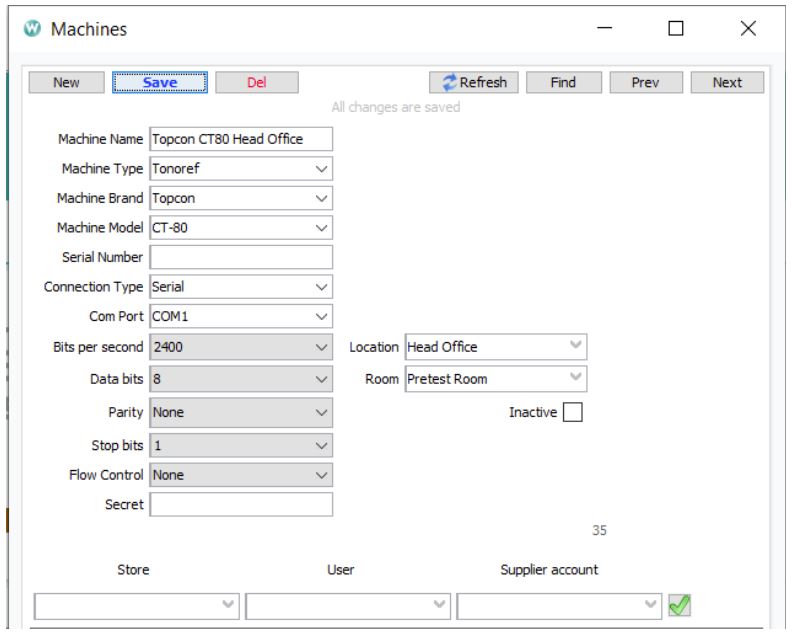
Explanation for Setup:
Machine Name: (Recommended) Some Descriptive Name (E.g. Machine Brand, Model, Location, Room)
Machine Type: (Required) Tonoref
Machine Brand: (Required) Topcon
Machine Model: (Required) Depending upon the device model
Connection Type: (Required) Serial
Com Port: (Required) Depending on assigned comport
Bits per second: (Required) Depending on setup.
Data bits: (Required) 8
Parity: (Required) None
Stop bits: (Required) 2
Location: (Required) Store Location
Room: (Required) Depending on the room setup. Usually a pretest room.
Machine should be set as active in order to run this driver.
Required fields are needed for the proper functioning of the machine integration process. If you don’t enter values in those fields and save the configuration, it is possible that you don’t get an error. However, the process might not work as expected.
CT-80 Basic Interface Specifications:
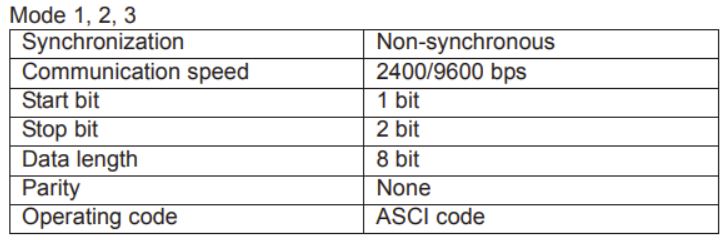
General Flow of Ref/Kera/Tono/Pachy Data(Extracting Data From Device To WINK):
- Tono Data is sent from the machine to the PC running machine interface
- These data are retrieved, processed and stored in the WINK database using the Topcon Serial Tono driver
- Using EMR app, the data that are stored in database are imported into WINK EMR app
Implementation Details:
- Patient ID is set to the patient found in the exam room info table. If no patient is found in the table, null value is set to patient id.
- For date and time, the current timestamp is set for the data.
Comments