
Essilor Essibox - WINK Machine Integration Guide
Prerequisites: Client Side Requirements:
- Making sure the server isn’t interfering with WINK ( firewall, antivirus….)
- The PC should be configured to accept SMB1 protocol
- Provide the IP address of the server
- Provide the username and password associated to the PC running machine interface
Prerequisites: Distributor/Manufacturer Side Requirements:
- All devices should be connected to cbox and cbox shared folder should receive files upon sending the data from devices
- Cbox shared folders should be accessible from the PC running the machine interface
- PC running the machine interface should be in private network
- Patch 2.1.0.0 needs to be applied in order to avoid extra processing of the data.
Recommended Approach:
- Configure all machines which are connected to the cbox. Must include serial number, location, and room number. Also, the cbox should be configured to send machine info and serial number in ihe xml, if possible.
Distributor/Manufacturer Side Configuration Tasks:
- Generate output from the device in xml, directly or indirectly and Send output xml to the shared folder. Standard shared folder name for the RM/KR/TRK device is either “RM”, “KR”, or “TRK”. However, it is not required.
- Email the output shared folder path and access info to the WINK team.
Other Tasks from WINK Side:
- Create a user that has access to nothing except launching the machine interface without a auto log-out
- Create room/s in WINKpms, if not created
WINK Side Configuration:
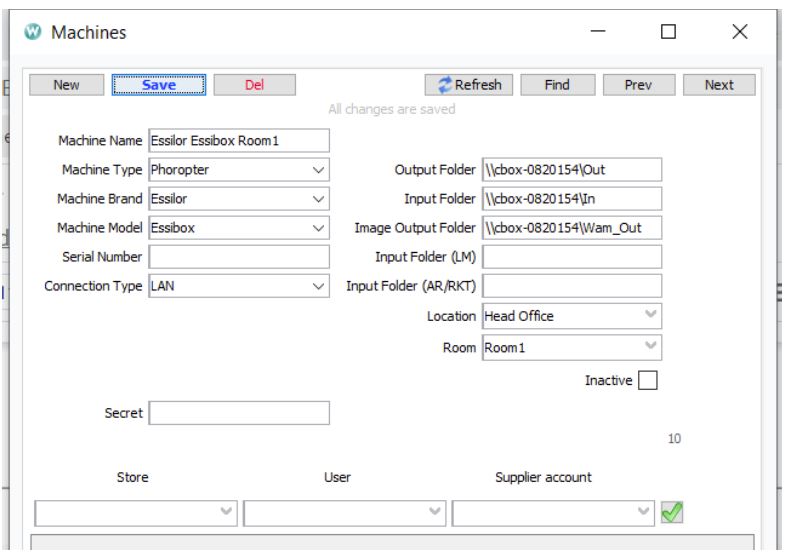
Explanation for Setup:
Machine Name: (Recommended) Some Descriptive Name (E.g. Machine Brand, Model, Location, Room)
Machine Type: (Required) Phoropter (in order to push data back to cbox)
Machine Brand: (Required) Essilor
Machine Model: (Required) Essibox
Connection Type: (Required) LAN
Output Folder: (Required) Depending upon the output shared folder path given by Distributor/Manufacturer representative
Input Folder: (Required) Depending upon the input shared folder path given by Distributor/Manufacturer representative
Image Output Folder: (Required) Depending upon the image output shared folder path given by Distributor/Manufacturer representative
Location: (Required) Store Location
Room: (Required) Depending on the room setup.
Machine should be set as active in order to run this driver.
Folder path should be the sub-folder containing the data file. For example, if the folder “RKT” contains another folder called “TXT” and the xml file is inside the “TXT” folder, then the folder path should be “\\shared_folder\RKT\TXT”, not “\\shared_folder\RKT” or “\\shared_folder”.
Required fields are needed for the proper functioning of the machine integration process. If you don’t enter values in those fields and save the configuration, it is possible that you don’t get an error. However, the process might not work as expected.
General Flow of Pre-test Data(Extracting Data From Device To WINK):
- Pre-test data is sent from the machine to cbox output shared folder
- These data are retrieved from the cbox output shared folder, processed and stored in WINK database using CBOX machine driver
- Using EMR app, pre-test data that are stored in database are imported into WINK EMR app
General Flow of Pretest Data(Extracting Data From Device To WINK):
- Exam data is sent from the phoropter to cbox output shared folder
- These data are retrieved from the cbox output shared folder, processed and stored in WINK database using CBOX machine driver
- Using EMR app, exam data that are stored in database are imported into WINK EMR app
General Flow of Phoropter Data(Send Data From WINK to phoropter via CBOX):
- By clicking on “Export” button on EMR app under “Subjective Refraction” tile, auto refractor, lensmeter, and last prescription data are saved into examroomphoropter table.
- Based on configuration, either via phoropterpoll or via websocket, the changes in the examroomphoropter table are detected and sending the data to the phoropter is initiated. Three xml documents (lensmeter, autorefraction, and last prescription) are prepared based on measurements.
- Once the xmls are prepared, these documents are pushed to the input shared folder of the cbox.
- The data is consumed by the phoropter having access to the input shared folder.
Tagging/Assigning the machine info to examroommeasurent data for cbox
- First of all, the program tries to get the serial number of the machine from the xml data (from MachineNo under Common tag). If serial number not found, the program tags the data as coming from cbox
- If a serial number is found, then it tries to use that serial number to find the corresponding machine.
- If that machine is added/configured with wink along with its serial number, then it will find that machine and tag that machine info to that data.
- If that machine is not added/configured with wink or the serial number is missing from the configuration, then it will not find that machine and by default, it will tag cbox as the machine to that data. That is why it is important to configure all machines connected to cbox with a serial number.
Implementation Details:
- The program currently supports the following Measure Types only: LM, REF, TM, KM, SBJ. For xml files having other measure types, the program will not extract data from those files and rename the files as error files.
- For date and time, it will try to use the time and date mentioned in the xml. If no date and time are specified in the data xml, then current time is set for the data.
- Processing data happens instantly for xmls and after x seconds for images.
- While processing the medical structured data, the cbox driver only looks for the “.xml” and “.hst” extensions. Files with any other extension are ignored.
- While processing the images, the cbox driver only looks for the ".jpg” and “.jpeg” extensions. Files with any other extension are ignored.
- While processing the image, if the image file name pattern is not matched, an error is thrown, file name is renamed with extension “.fileNameFormatError”
- Exam distance of 100 or lower is considered as near exam distance data, exam distance of 10,000 is considered as infinite exam distance data, and everything else is considered as far exam distance data.
- For SBJ measure, as of right now, Data with custom exam types are ignored; however, they can easily be added if needed. This is done to limit the number of entries on the database.
- File name format used for pushing the data into data is: ID_FIRSTNAME_LASTNAME_DATETIME_BRAND_MODEL_LM_IN.xml where ID is Wink Account and Patient ID, FIRSTNAME is patient’s first name, LASTNAME is patient’s last name, DATETIME is the date and time data was pushed to examroomphoropter table, Brand is Machine Brand, Model is the machine model, LM is lensmeter data (can also be LM, AR, and RX), IN means input to phoropter. Here, firstname and lastname are optional.
- Default far exam distance is 500 and default near exam distance is 40. Default vertex distance is 0. Default values are used while sending objective data and lensmeter data to cbox. This is because we don’t have these values in emr yet.
- Usually, for SBJ measure, there are only two exam distance nodes. In case, if there are more than two nodes, all nodes will be saved in the database. However, while sending the last prescription to the cbox, only the near and far exam distance node will be sent.
- For SBJ measure, if two exam distance nodes have the same cylinder and axis value, they will be put together as a single entry in the database.
- While sending lensmeter data to the phoropter via cbox, the phoropter will import all data except prism. It’s their feature, not a bug.
- Image extraction is not working currently as the developers at Essilor can’t commit to the filename format mentioned in the documentation. While processing the cbox images, the driver is looking at a specific file name pattern, if the pattern is not matched, then the driver doesn’t process those files. Sample image file name pattern is: <ID>_<Machine>_<Serial>_<Suffix>_<LastName>_<FirstName>_<Eye>.jpg.
Comments