
Topcon LAN* Lensmeters - WINK Machine Integration Guide
Important Note:
This guide is for following Topcon Lensmeter devices: CL-100 2nd Generation, CL-200, CL-300, EZ- 200, and CL-300PD
Prerequisites: Client Side Requirements:
- Making sure the server isn’t interfering with WINK ( firewall, antivirus….)
- The PC should be configured to accept SMB1 protocol
- Provide the IP address of the server
- Provide the username and password associated to the PC running machine interface
Prerequisites: Distributor/Manufacturer Side Requirements:
- All lensmeter devices should be outputting the data in xml either directly to xml for LAN based devices or indirectly from serial to xml (using conversion software) for serial based devices. It is the responsibility of Distributor/Manufacturer rep to make sure that output data is in xml format.
- Upon exporting the data from the device, the data should be populated in the shared folder meaning the connection between the shared folder and the device should be set up.
- Output shared folder should be accessible from the PC running the machine interface.
- Shared folder path and access info containing the output xmls should be shared to the WINK team.
Important: For Topcon Serial LM devices, the WINK machine integration driver requires the conversion of Serial data to XML. As of right now, WINK cannot process serial data, but only xml data. The list of LM devices needing serial to XML conversion are:
- CL-100 2nd Generation,
- CL-200,
- CL-300,
- EZ- 200
For Topcon LAN based LM devices, the output data is already in xml, so the driver doesn’t require any conversion. The list of LM devices using LAN based connections are:
- CL-300PD
Distributor/Manufacturer Side Configuration Tasks:
- Generate output from the device in xml, directly or indirectly and send output xml to the LM output shared folder. Standard shared folder name for the lensmeter is “LM”. However, it is not required.
- Email the output shared folder path and access info to the WINK team.
Other Tasks from WINK Side:
- Create a user that has access to nothing except launching the machine interface without a auto log-out
- Create room/s in WINKpms, if not created
WINK Side Configuration (Sample):
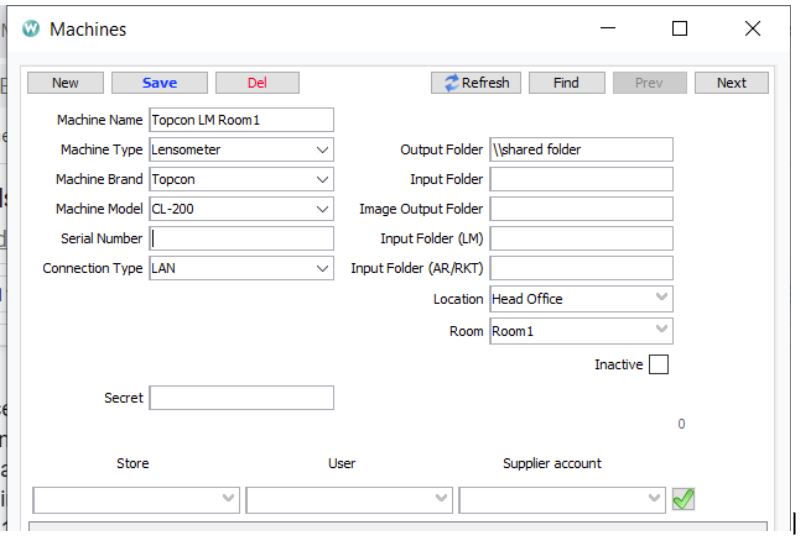
Explanation for Setup:
Machine Name: (Recommended) Some Descriptive Name (E.g. Machine Brand, Model, Location, Room)
Machine Type: (Required) Lensmeter
Machine Brand: (Required) Topcon
Machine Model: (Required) Depending upon the device model
Connection Type: (Required) LAN (Even if the Serial data is converted to XML)
Output Folder: (Required) Depending upon the output shared folder path given by Distributor/Manufacturer representative
Location: (Required) Store Location
Room: (Required) Depending on the room setup. Usually a pretest room.
Machine should be set as active in order to run this driver.
Folder path should be the sub-folder containing the data file. For example, if the folder “RKT” contains another folder called “TXT” and the xml file is inside the “TXT” folder, then the folder path should be “\\shared_folder\RKT\TXT”, not “\\shared_folder\RKT” or “\\shared_folder”.
Required fields are needed for the proper functioning of the machine integration process. If you don’t enter values in those fields and save the configuration, it is possible that you don’t get an error. However, the process might not work as expected.
General Flow of LM Data(Extracting Data From Device To WINK):
- LM xml data is sent from the machine to LM output shared folder by pressing the export button on LM device
- These data are retrieved from the LM output shared folder, processed and stored in WINK database using the Topcon LM driver
- Using EMR app, LM data that are stored in database are imported into WINK EMR app
Implementation Details:
- While processing the lensmeter structured data, the driver only looks for the “.xml” and “.hst” extensions. Files with any other extension are ignored.
- For date and time, it will try to use the time and date mentioned in the xml. If no date and time are specified in the data xml, then current time is set for the data.
- Date and time format other than the accepted format will be ignored and current timestamp will be used. The accepted format for the date is “yyyy-MM-dd” and for the time is “HH:mm:ss”.
Comments