If you are using WINK on a Mac and need an agent to connect to your computer for troubleshooting, they will remotely access your computer through an app called LogMeIn. Due to a recent update of LogMeIn you may need to grant it greater access to allow the remote connection to your Mac.
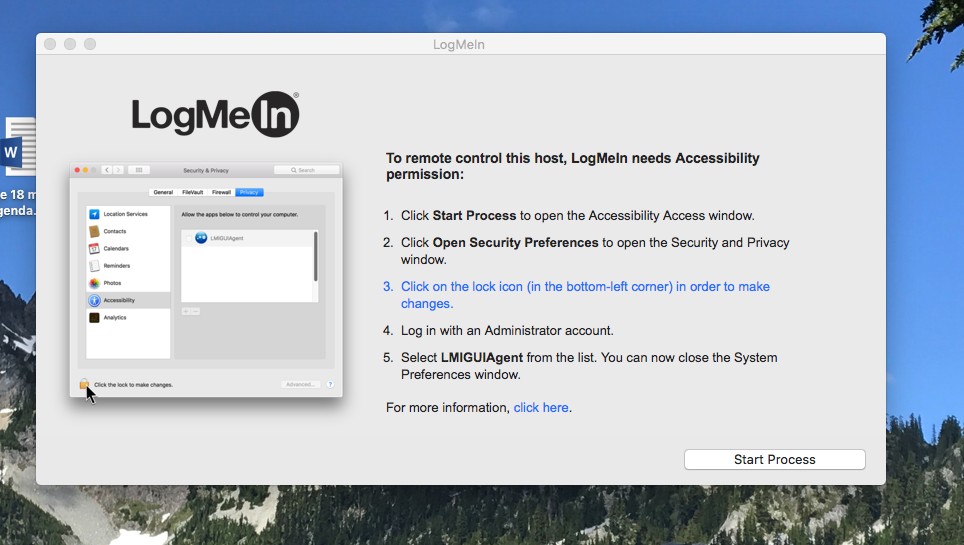
The window in the image above includes brief instructions on how to grant the requested access. If the provided instructions don't seem clear or if you’ve already dismissed this LogMeIn window, please follow this more detailed procedure:
- Open your System Preferences: click on the Apple menu and select "System Preferences"
- Click on "Security & Privacy"
- Click on "Privacy" at the top right end
- Click the "lock" icon in the lower left corner and enter your password when prompted
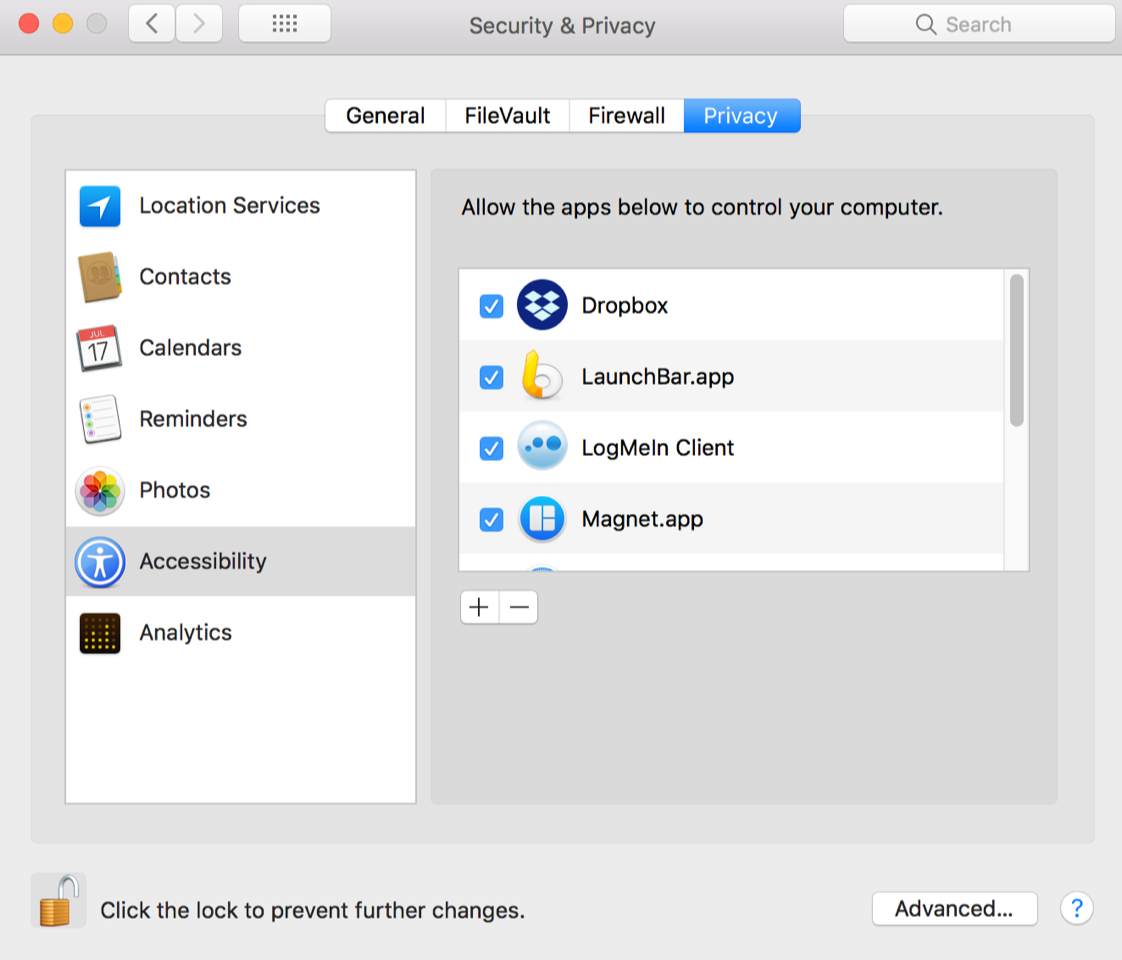
- Click on "Accessibility" from the scrolling list on the left-hand side.
- Insert a checkmark next to LogMeIn Client (if you don't see LogMeIn Client in the list, look for LMIGUIAgent).
Use the image below as a guide
Comments