
For those experience sub-par WINK responsiveness while using the software, if you have McAfee LiveSafe, then applying these settings might immensely improve WINK performance.
Navigating to Advanced Settings
1.> Locate the McAfee LiveSafe logo in task bar
The caption below illustrates how to access the McAfee LiveSafe logo in your taskbar. Right click on the McAfee logo to access the sub-menu. Select Open McAfee LiveSafe User Interface at the top of the sub-menu


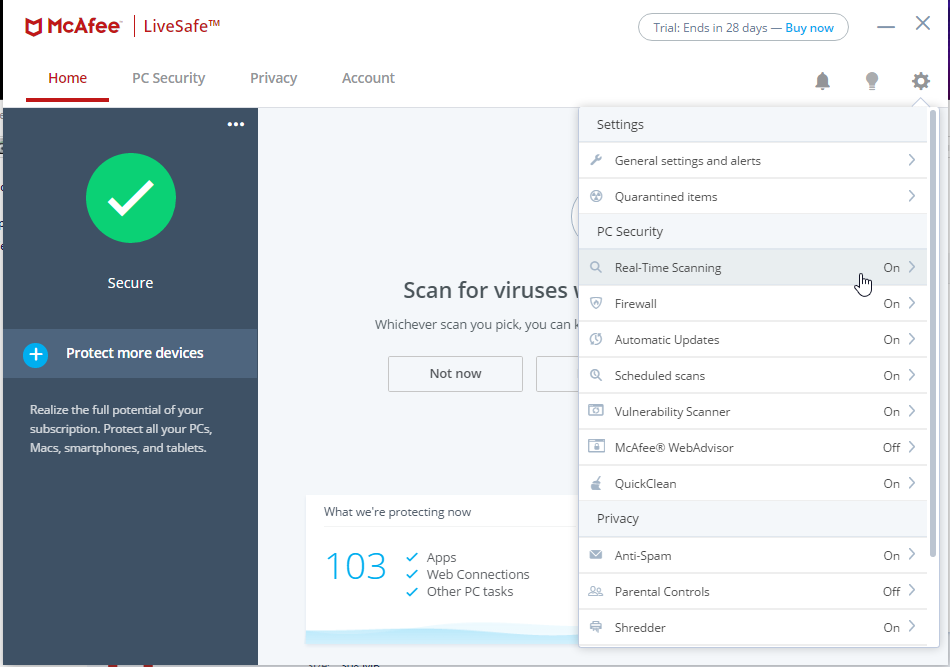
2.> You should reach the main page for McAfee LiveSafe User Interface (as indicated in caption below). In the upper-right corner, click on the gear icon  to access the Settings Menu.

Setting WINK Exclusions
3.> From the Settings Menu, select REAL-TIME SCANNING
3.a.> In the new window that appears, click on the down arrow for EXCLUDED FILES (refer to caption below)
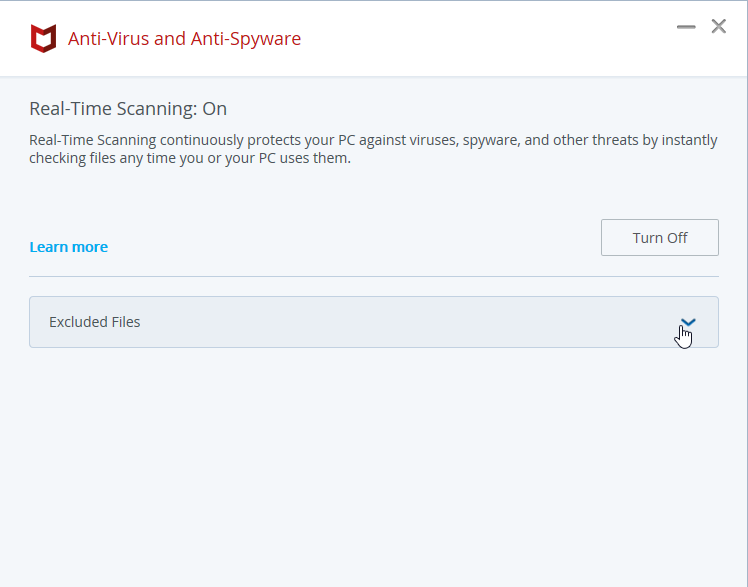
3.b.> Then click on the ADD FILE button

3.c> Navigate to C:\Program Files (x86)\Wink Technologies Inc\WINK 64bit to exclude Wink.exe file

Configuring McAfee Firewall Settings
4.> From the Settings Menu, select FIREWALL

Setting the Traffic Controller
5.> When the new window appears, click on Traffic Controller

5a.> Smart Access is usually on by default. Change option to Stealth and click on the APPLY button.


Disable Smart Advice
6.> Smart Advice is usually on by default. Change option to Stealth and click on the APPLY button.

6a.> Disable by unchecking the box and click on the APPLY button

Configuring "My Network Connections" (if applicable)
7.> From the list, click on My Network Connections. Select the network you are currently connect to and click on the ADD button.

7a.> Scroll down until you find Network Type. Make sure that it is set to either WORK or HOME. Click on the SAVE button if you made the change. If it is already set to either WORK or HOME, click the CANCEL button.

Configuring NetGuard Settings (if applicable)
8.> This step is to ensure that the NetGuard feature is not enabled for WINK. Scroll down the list (Settings>Firewall), and search for Internet Connections for Programs.
After which, a list of installed programs will be listed. Search through to find if WINK is listed. If it is, to the right make sure the status indicates OFF.

Comments