by: Michael Codner

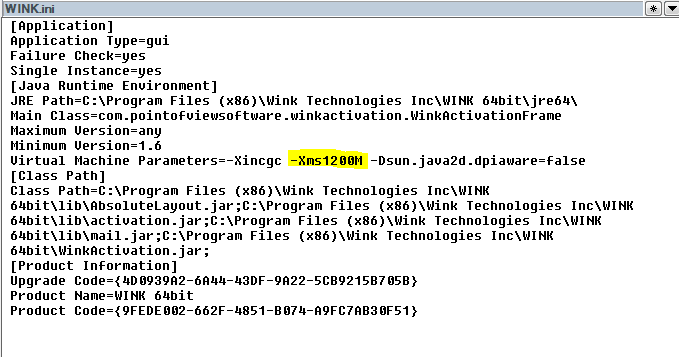
In some cases, when needing to improve WINK performance and/or responsiveness, configuring the amount of memory WINK uses might be necessary. This can can be done by adjusting the value for -XMS command found in WINK.ini; (navigate to C:\Program Files (x86)\Wink Technologies Inc\WINK 64bit to find). This command determines how much of your computer's RAM WINK will use when launched.
For example, as highlighted below, -Xms1200M represents WINK using 1.2GB of RAM. Whereas, -Xms4000M represents WINK using 4GB of RAM.
Before changing this setting, do keep in mind a few factors:
- Whether the Windows system is 32-bit or 64-bit
- The minimum requirements for the amount of RAM Windows need
- If/how much RAM is shared with the video/graphics processor
_____________________________________________________________________________
Determine Windows System Type
Before changing the settings in WINK.ini, you must determine if the Windows system is 32-bit or 64-bit. This can be done by following these steps:
View the System window in Control Panel
- Swipe in from the right edge of the screen, and then tap Search. Or, if you are using a mouse, point to the lower-right corner of the screen, and then click Search.
- Type system in the search box, and then tap or click Settings.
- Tap or click System.
- If you are running a 64-bit version of Windows 8, 64-bit Operating System is displayed in the System type field under the System heading. If you are running a 32-bit version of Windows 8, 32-bit Operating System is displayed in the System type field under the System heading.
- Click Start
, type system in the Start Search box, and then click system in the Programs list.
- The operating system is displayed as follows:
- For a 64-bit version operating system, 64-bit Operating System appears for the System type under System.
- For a 32-bit version operating system, 32-bit Operating System appears for the System type under System.
..... This is important, because depending on your findings, will determine the minimum amount of RAM required by Windows to remain functional.
_____________________________________________________________________________
Minimum RAM Requirements (Based on System Type)
Once you have determine the system type of your Windows, use the following guideline to determine the minimum amount of RAM Windows requires in order to run:
Windows 7 system requirements:
- 1 gigabyte (GB) RAM (32-bit) or 2 GB RAM (64-bit)
Windows 8/8.1/10 system requirements:
- 1 gigabyte (GB) RAM (32-bit) or 2 GB RAM (64-bit)
_____________________________________________________________________________
Determine How Much RAM Is Being Shared
If your computer has its own video card (a separate card), Windows will assign less RAM for video use- because the graphics card will have its own RAM. If your computer video/graphics processor is built-in (Is on the motherboard), Windows will traditionally assign more RAM for the video/graphics.
Windows 10
- Press the Windows key, type Display and press Enter.
- On the left-hand side of the screen, under System, click the Display tab.

- At the bottom of the page, near the Multiple displays section, click Display adapter properties.

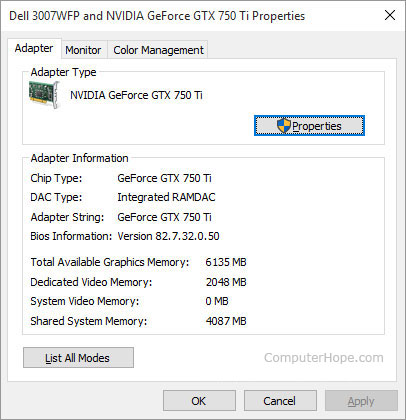
- In the window that appears, under the Adapter tab, you'll see your card's Video RAM [DEDICATED VIDEO MEMORY) and how much RAM Windows is assigning to the Video [SHARED SYSTEM MEMORY)

Windows 8/Windows 8.1
- Open the Control Panel.
- Select Display.
- Select Screen Resolution.
- Select Advanced Settings.
- In the window that appears, under the Adapter tab, you'll see your card's Video RAM [DEDICATED VIDEO MEMORY) and how much RAM Windows is assigning to the Video [SHARED SYSTEM MEMORY)
Windows Vista and Windows 7
- Press the Windows key, type Control Panel, and then press Enter.
- Under the Appearance and Personalization, click Adjust screen resolution.
- On the middle of the right-hand side of the screen, click the Advanced settings.
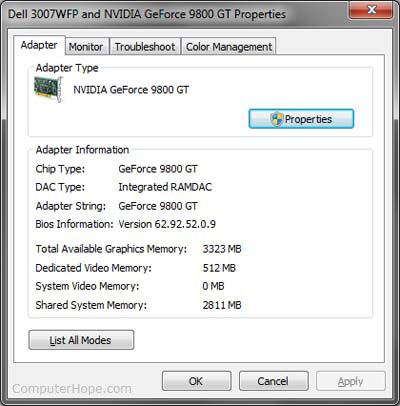
- A new window should appear with your video adapter's properties, similar to the image shown below.
- In the window that appears, under the Adapter tab, you'll see your card's Video RAM [DEDICATED VIDEO MEMORY) and how much RAM Windows is assigning to the Video [SHARED SYSTEM MEMORY)
Properly Configuring -XMS value
When changing the value of the -XMS command, it is important to configure it based on your findings after performing steps above.
A good example of properly setting the -XMS value, is to always leave some RAM for Windows to use. So if your computer has 8 GB of RAM, and Windows shares 2 GB with the video/graphics processor, then you technically have 6 GB of spare RAM remaining. So technically, you can set the -XMS value to 6GB (i.e. -Xms6000M)
A bad example would be if your computer has 4 GB of RAM, and Windows shares 512 MB RAM with the video/graphics processor. And then the -XMS value is set to 4 GB (i.e. -Xms4000M). WINK may run better temporarily, but the overall Windows performance will decrease quickly and dramatically.
This is particularly important to keep in mind for a system that runs WINK barely meets Minimum System Requirements for the amount of RAM available, and its being shared with the onboard video/graphics processor.
Some symptoms of what would happen should Windows run out of memory:
-Windows slow/freezing
-Screen flickering
-Screen goes black
-Screen/keyboard/mouse becomes unresponsive
Comments